
Docs navigation
Get started
AI agents
Connect
Operate
Day to day
When it breaks
Govern access
Team & account
Access
Identity concepts
Provider guides
Account
Single sign-on (SSO)
SSO lets you sign in to emisar through your own identity provider: Google Workspace, Okta, Microsoft Entra, JumpCloud, Keycloak, or any compliant OIDC provider.
Provisioning and removal from your directory is a separate layer on top of sign-in: directory sync (SCIM). Both are managed from Team → Single sign-on.
Setting up SSO login#
You need an emisar owner or admin, and enough access at your provider to create an application. Only available on Team & Enterprise.
- Open Team → Single sign-on → Add connection and choose your provider type. Leave the page open. It shows the redirect URI your provider asks for next.
-
At the provider, create a
confidential web application
with a client secret. Paste emisar's redirect URI into it unchanged; it ends in
/sign_in/sso/callback. - Back in emisar, enter the issuer URL, client ID, and client secret. For JumpCloud, select your organization's region instead of entering an issuer URL. Choose the new-member defaults, then select Add connection.
- Select Verify sign-in, complete the identity checks, and sign in at your provider. This links your provider identity to your current emisar member and verifies the saved connection.
- Select Enable for members and confirm. Members can now use this connection to sign in.
Check issuer checks the provider's discovery document. It does not test the client credentials or replace sign-in verification.
The provider guides below cover each provider's setup.
Connection settings#
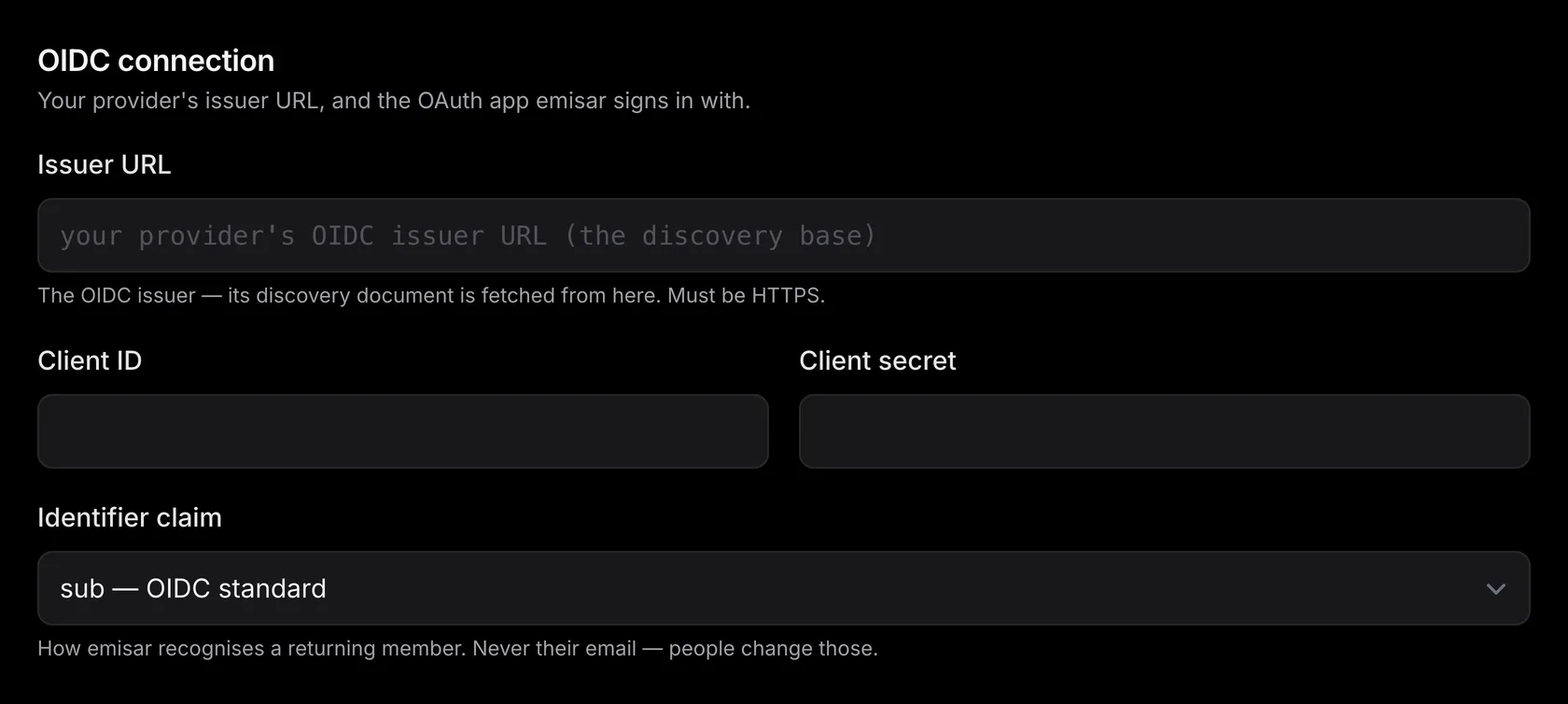
The provider type selects a preset that chooses the identity claim and provider-specific behavior. Pick your actual provider rather than Generic OIDC. The display name is shown on the sign-in page.
emisar fetches the issuer URL's OIDC discovery document and takes every other endpoint from it. Only enter the issuer. Do not enter authorization, token, or JWKS URLs. The issuer must use HTTPS and be reachable from emisar.
The client ID and client secret come from the application. The secret is write-only: emisar stores it server-side and never shows it again. Because emisar must send the secret on every sign-in, it cannot store only a hash. Leave the field blank when editing later to keep the current secret.
The identifier claim
is the field emisar stores as a person's permanent id:
sub
for most providers,
oid
for Microsoft Entra. Leave it unchanged, because emisar
recognises a returning member by this value. The issuer, client ID, and identifier
claim become read-only once a member identity exists, including one created through
directory sync. The client secret can still be rotated. Your directory must send the same value as SCIM
externalId
so sign-in and directory sync identify one person.
Who gets in, and what they get#
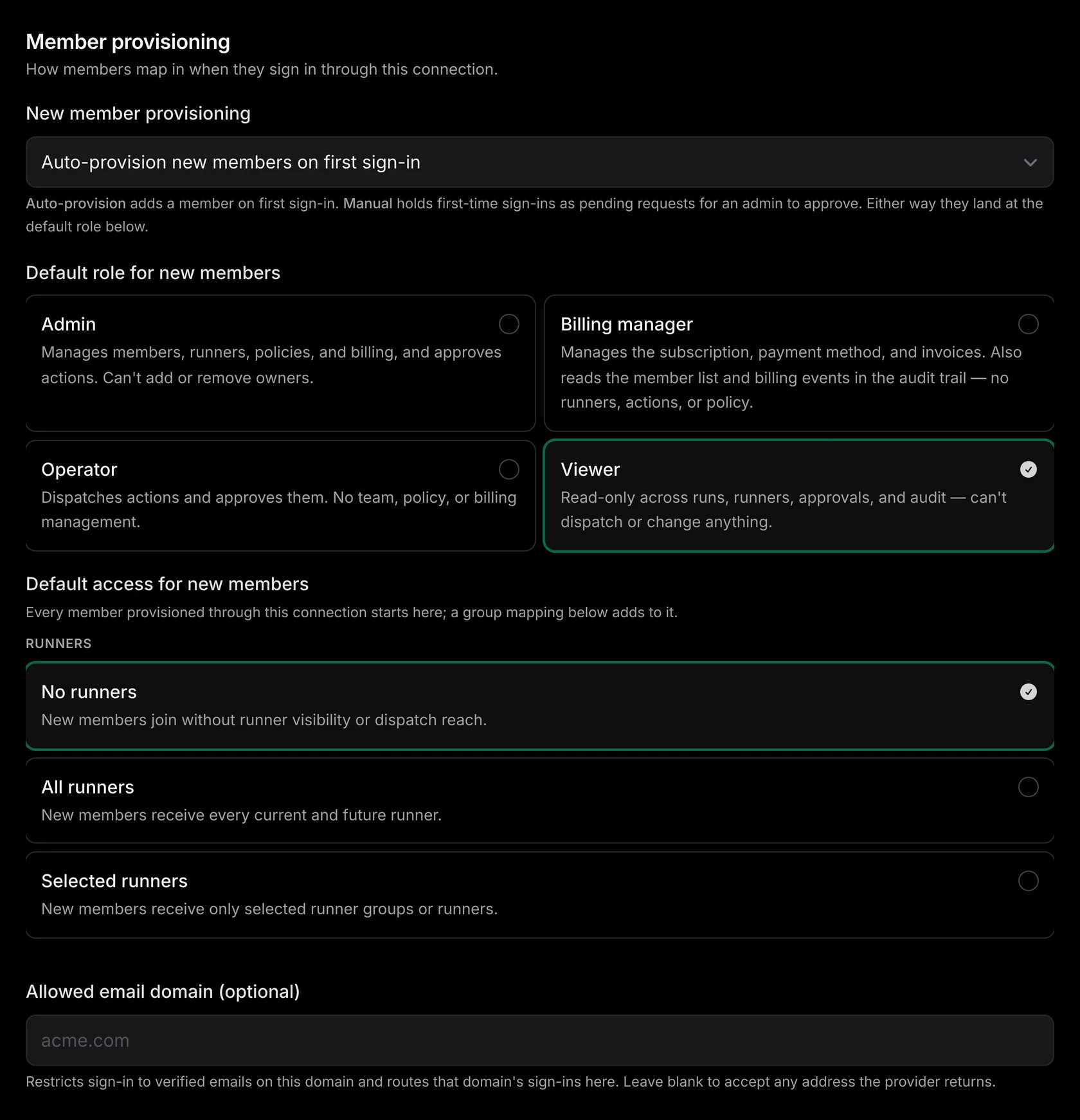
New members controls a first sign-in when no emisar member exists. Add on first sign-in creates the member immediately, and Require approval holds the first sign-in for administrator approval. Adding on first sign-in is the usual setup when the provider application is assigned only to approved users. Require approval when you cannot control assignments that tightly.
Either way, single sign-on adds a member to this workspace. The member signs in through your provider and reaches only this workspace. A verified email from the provider becomes the member's contact address but does not turn on email sign-in. So the member keeps signing in through the provider. To set up an authenticator, the member signs in at the provider again instead of confirming an emailed code.
Turning on directory sync overrides this setting: the directory decides who exists, and a sign-in from an account the directory has not provisioned waits for approval either way.
Default role is configurable. Provisioning never grants owner. The owner role stays a deliberate human grant, so no provider misconfiguration can grant this role. In Groups & access, the highest mapped role wins. The default is only the fallback for someone in no mapped group, not a minimum role. With directory sync enabled, changes also apply to existing directory-managed members. See roles for the list of roles and their permissions.
Default access controls which hosts a new member can act on. No runners is the safe default: the member reads the console and reaches nothing until you grant access. All runners covers current and future runners, and Selected runners limits access to named groups or hosts. Roles and runner access are independent: an operator with no runners cannot dispatch anything.
Allowed email domain
is optional. Set it to allow sign-ins from one domain only. For Google Workspace,
emisar checks the
hd
claim to confirm the Workspace tenant. For other providers, the ID token must include
an email address from that domain and mark it with email_verified: true. The
hd
claim does not confirm the email address, so emisar cannot use it to store an address or
recognise a member. Leave this field blank to accept every identity returned by the
provider.
Satisfying the MFA requirement#
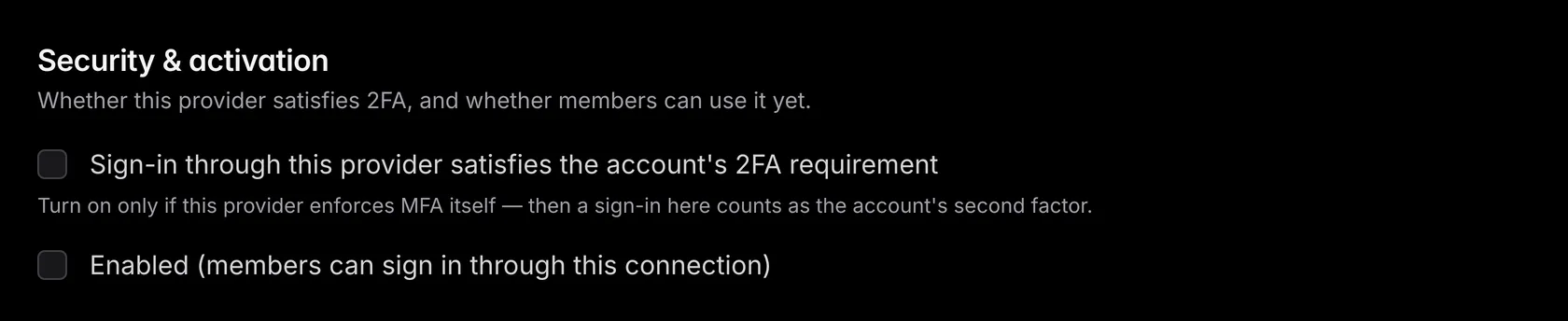
Enable this setting if your provider satisfies the account's MFA requirement. It saves members from setting up a second MFA token for emisar. Only turn it on if the provider really enforces MFA. Otherwise the setting becomes a way around the account's requirement, which is described in Enforce account sign-in. Turning it off ends the sessions that signed in through the connection, so those members sign in again.
How members sign in#
Members open the workspace's sign-in page, emisar.dev/app/<workspace>/sign_in, or enter
the workspace address at /sign_in. They select
Continue with
and the connection's display name, sign in at the provider, and return signed in to
that workspace.
When the email already belongs to someone#
emisar recognises a returning member by the identifier claim, not by their email address. People change addresses, and an address can be reassigned; the identifier claim cannot. Matching on email would let whoever controls an address inherit the membership behind it. So a first SSO sign-in never silently merges into an existing one. emisar compares its verified email only with the contact addresses of this workspace's members, and no two members of a workspace share an address:
- One member uses the address. emisar holds the sign-in, and an owner or admin approves it under Team → Pending access requests. Approving binds that existing member to the SSO identity. It does not create a second person, and their role and runner access are left as they are. If their team invitation is still pending, they accept the invitation first. Only then can an administrator approve the SSO identity.
- No member uses the address. The sign-in follows the New members setting above.
Managing a connection#
Require SSO for the account#
First complete a real sign-in through the connection in another browser. Check issuer checks discovery and reachability only. It does not check user assignment, callback acceptance, or claims, so it can pass on a connection nobody can actually sign in through. Keep an owner signed in to this workspace through SSO while you test. Turning the requirement on signs out every email sign-in session, including your own. Then open Team → Security and turn on Require single sign-on.
Once required, members sign in only through SSO, and the sign-in page stops offering
email. An invited person confirms the code sent to the invited address, then signs in at
the provider, which links that identity to the new membership. A member who was removed
and later invited back at the same address does the same, which moves their existing SSO
identity to the new membership. Entra must send the
auth_time
claim for this step; see the Entra guide.
You cannot enable this option
with no active SSO connection. emisar refuses to disable or
delete the last active connection while the requirement remains on. Turn off Require
SSO before retiring that last connection.
Require SSO gates browser access and new OAuth consent for every member, including owners. For what it covers, and the bearer credentials it leaves untouched, see what Require SSO covers.
Rotate a client secret#
The client secret is a credential like any other. The rotation steps, including the write-only field and the sign-in check before you delete the old secret, are in Rotate and revoke credentials. If you suspect a leak, follow Security incidents instead.
Move to another issuer or client#
After an SSO connection's first sign-in, its issuer, client ID, and identifier claim cannot be updated any more. To move tenants, issuers, or clients, add a new connection and move assignments to it. You can still change the client secret to rotate it.
Disable or delete a connection#
Disabling a connection stops new sign-ins but keeps the configuration, so you can enable it again later. Deleting retires it and dismisses any manual-approval requests still waiting on it. Either way, the sessions that signed in through it end; members and audit history are kept, and email sign-in sessions remain. Re-enabling the connection does not restore those sessions; members sign in again. A member left with no other way to sign in (no verified email address and no other enabled connection) also loses its API keys, the agent connections built on them, and its approved device access. Re-enabling does not bring them back.
An account can have several provider types, but only one enabled connection of each type. Only one enabled emisar connection can use a given email domain. Remove or disable the existing domain before assigning it elsewhere.
Provider guides#
Each guide covers one provider end to end: sign-in first, then directory sync, with screenshots of the console screens along the way.
- Okta uses an OIDC web app for sign-in and a separate SCIM app for the directory. Live-tested against an Okta Integrator org on August 25, 2026.
-
Microsoft Entra
uses an app registration with the
oidclaim, and an enterprise application for provisioning. - JumpCloud handles sign-in and provisioning together in one custom application. Live-tested against a JumpCloud tenant on August 25, 2026.
- Keycloak uses a confidential client with PKCE and has no outbound SCIM.
- Google Workspace uses an Internal OAuth client with a locked, prefilled issuer and no outbound SCIM.
Any other OIDC provider#
The preset providers are all built on one standard flow. A provider that meets the contract below works through Generic OpenID Connect, including Auth0, Ping, OneLogin, Authentik, or an in-house IdP. This connection uses only the OIDC authorization code flow. SAML is not supported.
The setup steps
above are the same here. Two extra requirements apply to a provider with no preset: its
issuer must serve /.well-known/openid-configuration, and it must
advertise
client_secret_post
or
client_secret_basic
for client authentication. The
contract
below
is the full list emisar checks.
OIDC contract#
| Part | What emisar requires |
|---|---|
| Discovery | The issuer must use HTTPS and have a valid OpenID Provider Configuration. Its authorization, token, and JWKS endpoints must also use public HTTPS. Private, loopback, and cloud-metadata targets are refused. |
| Endpoint responses | Each HTTPS request for discovery, JWKS, pushed authorization, or token exchange must complete within 15 seconds. Emisar closes an OIDC connection after 30 seconds or 1 MiB of combined encrypted request-and-response traffic, including protocol overhead. Endpoints must respond directly; automatic redirects and Retry-After retries are not followed. |
| Authorization |
The provider must support authorization code flow with PKCE. The system uses S256
when the provider advertises it. It accepts plain only when the provider advertises
plain as its PKCE method. The request includes openid, email, profile, state, and nonce.
|
| Client authentication |
A confidential client using client_secret_post
or client_secret_basic. Public clients and signing-key client
authentication are not supported.
|
| ID-token claims |
The ID token must include a stable identity claim: sub
for most providers and oid
for Entra. Email and display name are
optional. emisar stores an email address or uses it to recognise a member only
when the token includes email_verified: true. For Google Workspace,
emisar uses hd
to check the Workspace tenant. emisar reads these claims
from the ID token and does not call UserInfo.
|
| Validation | The callback must pass state, nonce, PKCE, ID-token signature, exact issuer, expiration, and an audience equal to this connection's client ID with no other audience before emisar resolves an identity. |
Troubleshooting#
Use these checks for common sign-in symptoms. If the symptom is somewhere else in the product, start from troubleshooting, which routes each one to its owner page.
| Symptom | Check |
|---|---|
| Check issuer cannot load discovery |
Use the issuer, not an authorization or token URL. Confirm it serves
/.well-known/openid-configuration
over public HTTPS and does not
publish private or non-HTTPS endpoints.
|
| The IdP rejects the callback or token exchange | Compare the redirect URI byte for byte, confirm the app is a confidential web client, and replace an expired client secret. Turn off DPoP if the provider offers it, because a sender-constrained token breaks the token request. For a generic provider, confirm a PKCE method and one of the two supported secret-auth methods are advertised. |
| Authentication succeeds but emisar refuses the identity |
Inspect the ID token. It must contain the configured stable identifier. If the
connection restricts an email domain or needs email-based linking, include an
explicitly verified email. Google Workspace may instead use a matching
hd
for its tenant boundary. UserInfo-only email or profile claims are not read. A
verified email that already belongs to a member holds the sign-in for approval;
see When the email already belongs to someone.
|
| Members cannot sign in after Require SSO | Use an owner's SSO session in this workspace to turn off Require SSO, then test provider sign-in before enabling it again. While SSO is required, the sign-in page offers no email sign-in. If no owner can sign in through SSO, contact support. |
| SSO and SCIM create different identities |
Make SCIM externalId
equal the OIDC identifier claim. The identity-matching rules and per-provider
claims are in Directory sync.
|
Security notes#
Every SSO sign-in lands in the audit log with its authentication method.